Backups Are Boring Until You Need Them
If you run a home lab long enough, something will break. Not might. Will.
An update that silently corrupts a config, a service that refuses to come back up after a reboot, a migration that goes sideways halfway through. I have been through all of it. And over time, I stopped treating backups as a safety net I hoped I would never use, and started treating them as a core part of how the lab operates. They run in the background every night, and when I need them, I just use them.
This post is about how that system works, what I back up, how often, and where it goes.
The 3-2-1 Rule
Before getting into the specifics, there is a principle worth knowing. It is called the 3-2-1 rule, and it is the standard most serious backup strategies follow.
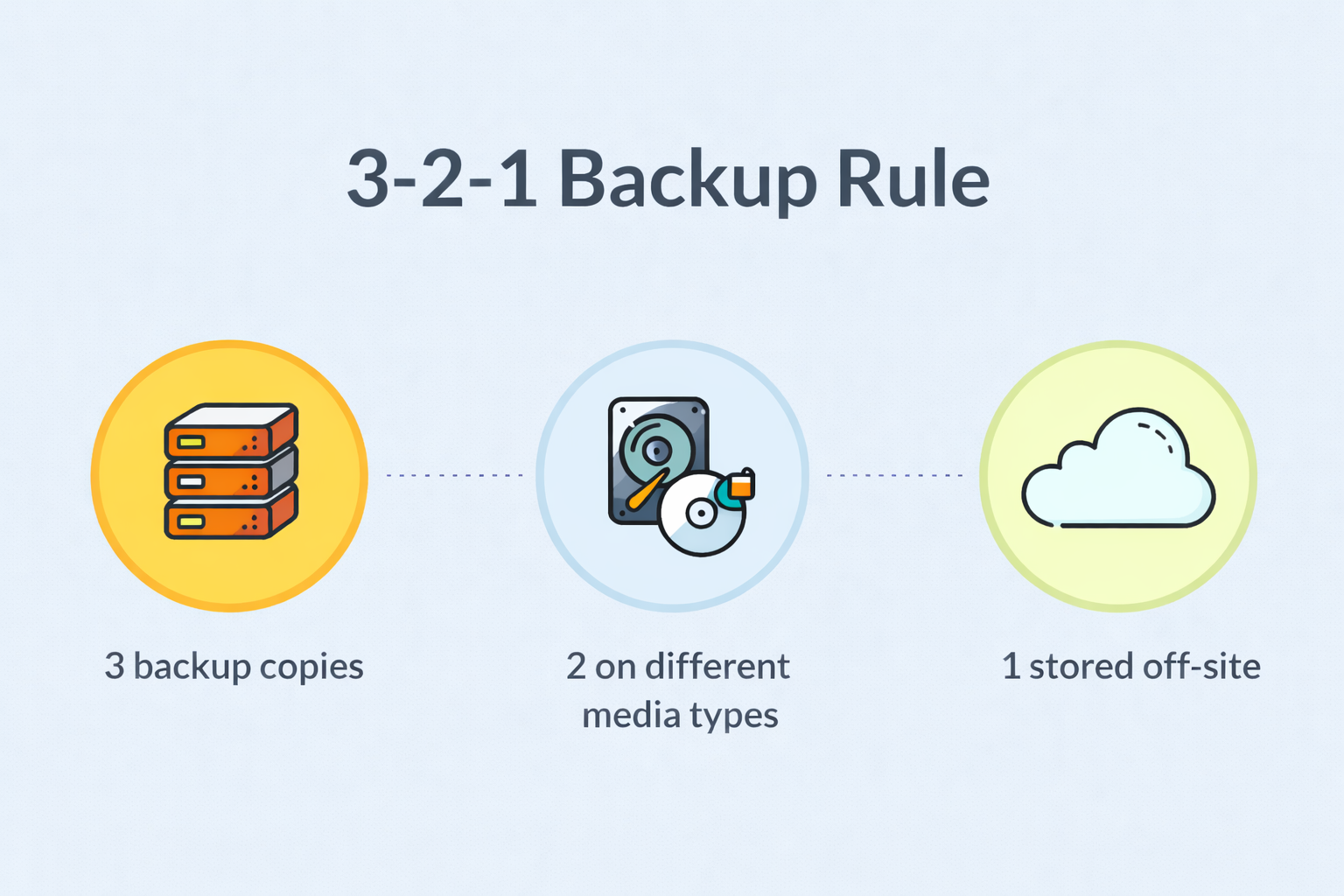
The idea is simple: you should always have 3 copies of your data, stored on 2 different types of media, with 1 copy kept offsite meaning outside your local network.
The logic behind it is just risk management. If you only have one copy and the drive fails, you have nothing. If you have two copies in the same place and there is a fire or a power surge, both are gone. The rule forces you to think in layers. A local copy for speed, a second local copy for redundancy, and an offsite copy for disaster scenarios.
My setup follows this almost exactly. It did not start that way early on, something broke in Home Assistant badly enough that I decided to actually research the topic properly. The 3-2-1 rule came up quickly, and from that point the system was built deliberately around it.
What I’m Actually Backing Up
The lab runs on Proxmox, with several VMs and containers inside it Home Assistant, N8n, a media server, and AdGuard Home. Each one has different data, a different criticality level, and a different backup strategy.
Home Assistant is the smart home platform. It holds all my automations, device configurations, and dashboards. The automations alone make this the most critical thing to protect I have over 90 of them, with logic that took days of writing, debugging, and refining to get right. Losing that and rebuilding from scratch would not take days. It would take weeks. It backs up every night automatically using the Google Drive integration, which is a native HA addon. A few clicks to set up, runs silently, and every morning there is a fresh copy in Drive. The integration also handles retention automatically I have it set to keep the last 15 backups, so Drive never fills up. Each backup is around 130MB, which is why keeping 15 of them is not a concern at all.
N8n is where all my automations live the expense tracker, the AI coach, and a dozen other workflows I depend on daily. I built a simple automation inside N8n itself that exports all workflows every night and pushes them to Google Drive. It takes no manual effort and gives me a full version history I can go back to at any point.
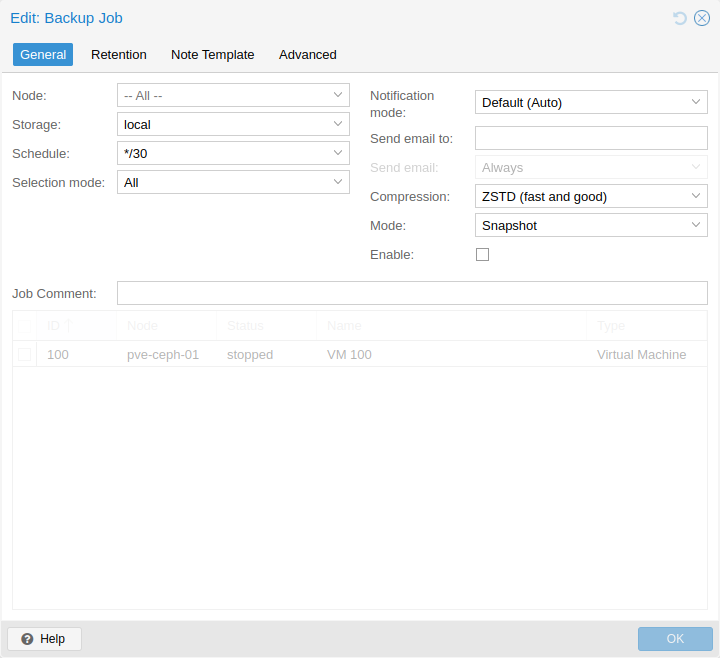
The VMs themselves are backed up at the Proxmox level every Sunday at 2AM, automatically. Once a month, I take that backup and move it manually to an external drive and upload it to Google Drive as well. This is a fundamentally different kind of backup than the application-level ones above, and the difference matters.
Application Backup vs. Full System Backup
This distinction is worth taking seriously, because the two types of backup protect you against very different failures.
When Home Assistant backs itself up, it exports everything it knows about itself automations, configuration, history, addons. It is a complete picture of the application’s state. But it is still just an application export. If the operating system underneath it gets corrupted, or the VM itself fails to start, the HA backup alone cannot help you. You would need to rebuild the environment first, then restore it.
A Proxmox backup is different. It captures the entire virtual machine the OS, the file system, every installed package, every config file, every service. When you restore it, you are not restoring it into a clean environment. You are restoring the environment itself. Everything comes back exactly as it was, down to the last setting.
The tradeoff is size. An HA application backup is around 130MB. A full VM backup through Proxmox is around 12GB. That gap exists because Proxmox is capturing the entire machine, not just the application data sitting inside it.
Both have a place. The application-level backups run nightly because they are lightweight and fast. The Proxmox backups run every Sunday automatically and once a month I push them out to external storage and the cloud.
Snapshots Are Not Backups
There is one more tool in Proxmox that is easy to confuse with a backup: snapshots.
A snapshot is not a backup. It is better described as a checkpoint a frozen point in time that you can return to instantly. When I am about to make a change that could break something (a major update, a config restructure, experimenting with something I am not confident about), I take a snapshot first. If things go wrong, I roll back. The whole process takes seconds.
At one point I broke a Home Assistant update so badly it would not even start. Instead of trying to debug it, I rolled back the snapshot and the system was back literally under 10 seconds
Snapshots are fast precisely because they do not copy data. Proxmox records what changed after the snapshot was taken, and rollback simply discards those changes. That speed is the entire point it makes it safe to break things because the cost of breaking something is almost zero.
But that also means snapshots are not a replacement for backups. They live on the same disk as the VM they are protecting. If the disk fails, the snapshot is gone along with everything else. And unlike backups, I do not keep them long-term. I take a snapshot before a risky change, and once I am confident things are stable, I delete it.
Backups go somewhere else. Snapshots stay local. They solve different problems.

Where Everything Goes The Full Picture
After all of it, this is what the backup system looks like in practice.
Home Assistant backs up nightly to Google Drive. N8n backs up nightly to Google Drive. Both are application-level exports, lightweight and automatic. Every Sunday, Proxmox runs an automated backup of all VMs and saves it locally on the server. Once a month, I do a full Proxmox backup and transfer it manually to my desktop PC a step I choose to keep manual specifically because I want to see it happen. That copy then syncs automatically from my desktop to Google Drive through the standard backup that runs on the machine.
The result is three copies of everything that matters:
One on the Proxmox server itself. One on my desktop PC. One in Google Drive.
That is the 3-2-1 rule in practice.
When It Actually Matters
I have used this system more times than I can count. Running a home lab means breaking things regularly that is part of how it works. Updates ship with bugs, dependencies conflict, and sometimes an experiment just goes sideways. The backups are not there for catastrophic failures. They are there for Tuesday afternoons when something stops working and you just want to get back to where you were.
The most significant time I used it was during a hardware migration. My previous setup ran on two old laptops, each running its own Proxmox instance because neither was powerful enough to handle everything alone. When I moved to the current mini PC, I restored the VM backups onto the new machine. There was configuration work involved because the hardware was different, but the services, the data, the history all of it came across. What would have taken weeks to rebuild from scratch took a few hours.
That is what a good backup system actually gives you: not just protection against disasters, but the freedom to make changes without fear. To upgrade, to experiment, to break things on purpose knowing that going back is always an option.